Virtual BRP / PI Planning Checklist
- Zhi Lee
- 19 May, 2022
- 03 Mins read
- Agile Resources & Tools , Big Room Planning / PI Planning
Have you been tasked with facilitating a large virtual meeting (100+ participants)? We asked Agile Coach Zhi Lee what was on his checklist for running virtual Big Room Planning by way of example. Having successfully run 6 BRPs as well as 4 large training exercises with remote participants over the course of 2020 and 2021, here’s what Zhi had to say!
Running a 150 person virtual event from home
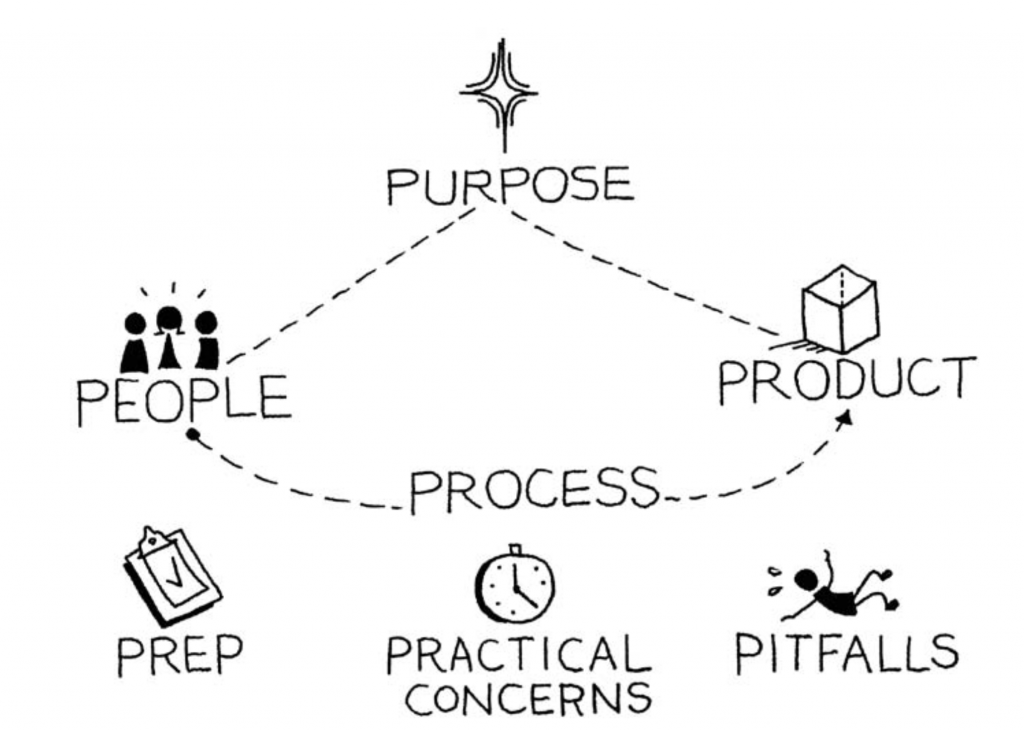
My go-to framework for any meeting prep is the 7 P’s. Over and above a standard in-person meeting, there are additional considerations for a large virtual event.
Purpose
If it is a traditionally in-person event you’re running that you’re converting to virtual, have all new starters been inducted into the purpose of the event? Consider spending more time on this induction as there may be new starters amidst Covid who haven’t been in the office very much or met their team in person. Consider running a virtual induction using the same platform you are going to use for the event. Don’t just point people to read the induction documentation or event notes, actually run them through the WHY, WHAT and HOW of the event.
People
Aside from meeting participants needing to know what role they play in the event, it’s just as important (if not more important) to ensure that all speakers know when they are up!
Product
Ensure people know where to find your virtual whiteboard / collaboration space (e.g. Miro). A virtual collaboration space becomes the central point of tangible and effective discussions. Consider pointing out what whiteboard tool we will be using to collaborate at your Pre-BRP induction. Post a shoutout to the actual whiteboard in your existing comms channel (e.g. Microsoft Teams), put a link to it in the agenda of the meeting invitation. Basically, communicate lots about this Miro board. Expect access issues – ensure people are granted the correct permissions especially if there are externals who are not on your organisation’s network.
Process
Carry through the macro (why are we here) and micro purpose of the meeting (what’s happening now, what’s next) through every stage. Ensure you keep pointing to what’s next in the agenda and what we’re doing RIGHT now. This is especially important in a virtual meeting so people know where to be when virtually. Ensure you touch on the virtual planning process using the Miro board.
Pitfalls
If you’ve needed to purchase a subscription for the video/voice platform, ensure it is up to date and paid up! For example, with Zoom there are no breakouts in the free version and you cannot run meetings longer than 40 minutes. Don’t forget to record the right sessions. Don’t record more than you need to. Sometimes recording infringes on the safe space you’re trying to create. Ensure you do not have stray meeting links in your invitations. For example, if you’re using Zoom and people are accustomed to using Teams, they may jump into teams by default. In this scenario, remove all stray MS Teams links.
Prep
Ensure all invites and times are up to date. Don’t overbook by creating a longer invite than necessary. This is especially important in virtual meetings where people rely on clear expectations re timings. Create a single shared presentation deck that everyone can chime into, rather than flick between screenshares. This will save time and allow for a slicker presentation. Check all URLs in invites, especially with Zoom links there can be cut and paste errors. Start your meeting at least 20 minutes in advance – this allows you and others to dial in to early to check audio.
Practical Concerns
Ensure everyone knows the event is virtual, what platform we’re using and where to find the agendas / runsheets. If you are using Breakout functionality (which is certainly the case with BRP), ensure everyone knows to use the Desktop (not web) client. Running a pre-event check-in with a breakout 1-2 weeks before the event will save you major troubleshooting during BRP. Pay extra attention to externals, making sure they understand the above 2 points. As a facilitator, you need the best setup you can afford in order to be confident, productive and be able to tune in to the needs of the participants. 3 screens are recommended (laptop + 2 secondary monitors):
- Screen 1: Facilitator controls (e.g. breakouts, chat, announcements, participants)
- Screen 2: A browser with multiple tabs (Whiteboard, Email, Comms tool if different from event platform)
And lastly, just turn up and be calm. Breathe! You can’t plan for every scenario so take everything in your stride.
Stop "doing" process. Start delivering results.
Get in touch nowSee how we can help fine tune your business.